Answering a request
When a casting director needs something from your agency — such as booking an audition slot for a talent you represent — they send a request through Tomobi. You receive a notification email with a link, and the request also appears in the Tasks table on your Overview page.
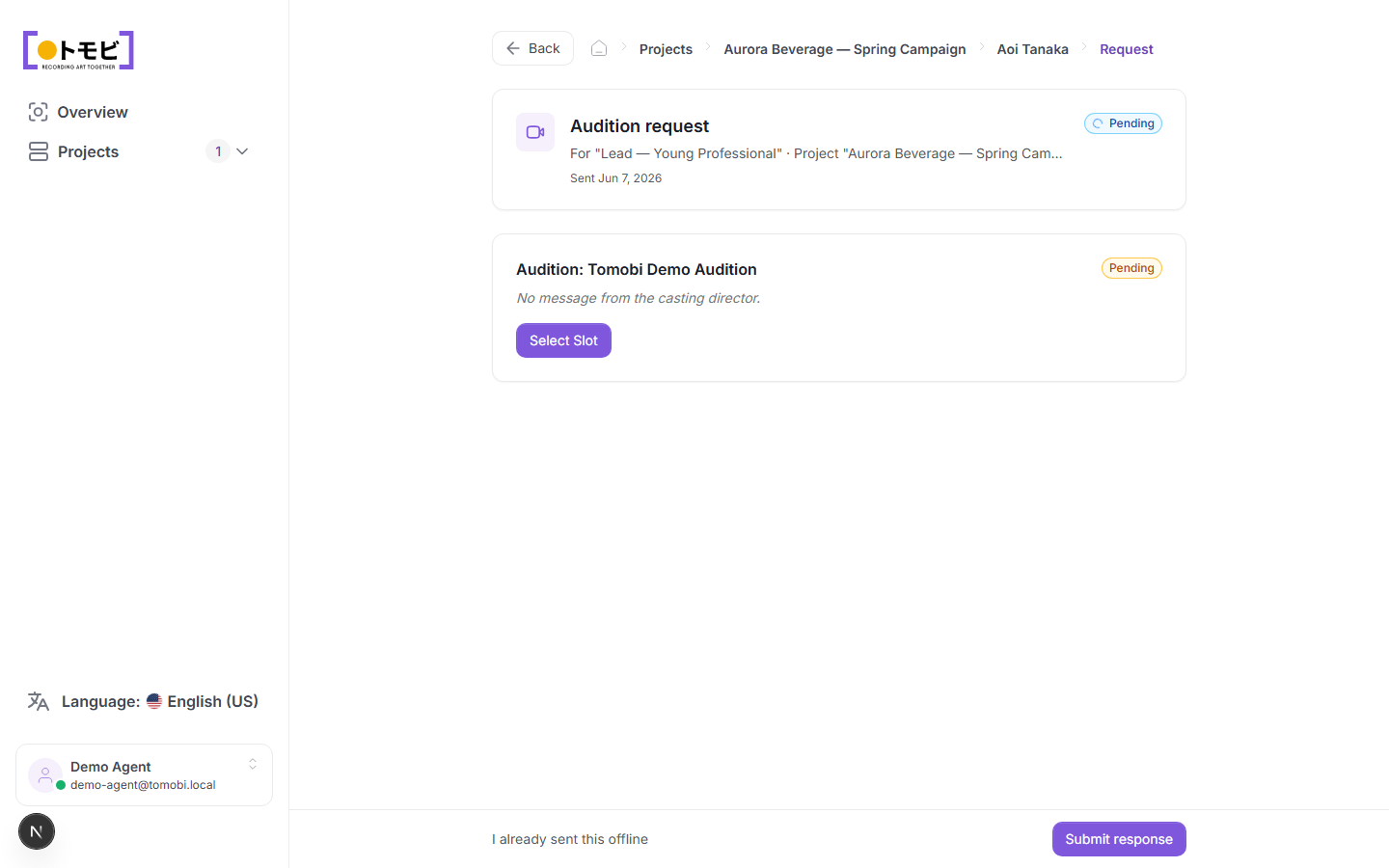
Open the request
Click the link in the notification email, or open the request from the Tasks table on the Overview page. The request page shows:
- Request type — for example, "Audition request".
- Talent and role — the talent's name and the role they're being considered for, along with the project name.
- Date sent — when the casting director sent the request.
- Status — whether the request is still pending or has been answered.
Self-book an audition slot
If the request is an audition booking, the request page shows the audition details and a Select Slot button. To book a slot:
- Click Select Slot. A list of available time slots appears.
- Choose the slot that works for the talent.
- Click Submit response at the bottom of the page to confirm your selection.
The casting director is notified immediately that the slot has been booked.
Confirm a hold or other request
For requests that don't involve slot selection — such as confirming a hold or acknowledging availability — review the request details shown on the page, then click Submit response to send your answer.
If you already responded offline
If you already spoke with the casting director directly and the matter is resolved, click I already sent this offline at the bottom of the page. This closes the request without going through the online flow and notifies the casting director that it was handled outside the portal.
Requests stay marked as Pending until you submit a response or mark them as handled offline. Unanswered requests remain visible in the Tasks table on your Overview page so you don't lose track of them.