Proposals — sharing with your client
A proposal is a curated presentation of your top talent candidates that you share with your manager or client (the decision-maker) for review and sign-off. The reviewer does not need a Tomobi account — they access the proposal through a secure link and can leave feedback directly.
Create a proposal
- Open your project and click the Proposal tab.
- Select + New Proposal (or the equivalent button in the Proposal tab).
- Give the proposal a name and save it. It starts with a Draft status.
Add roles and talents
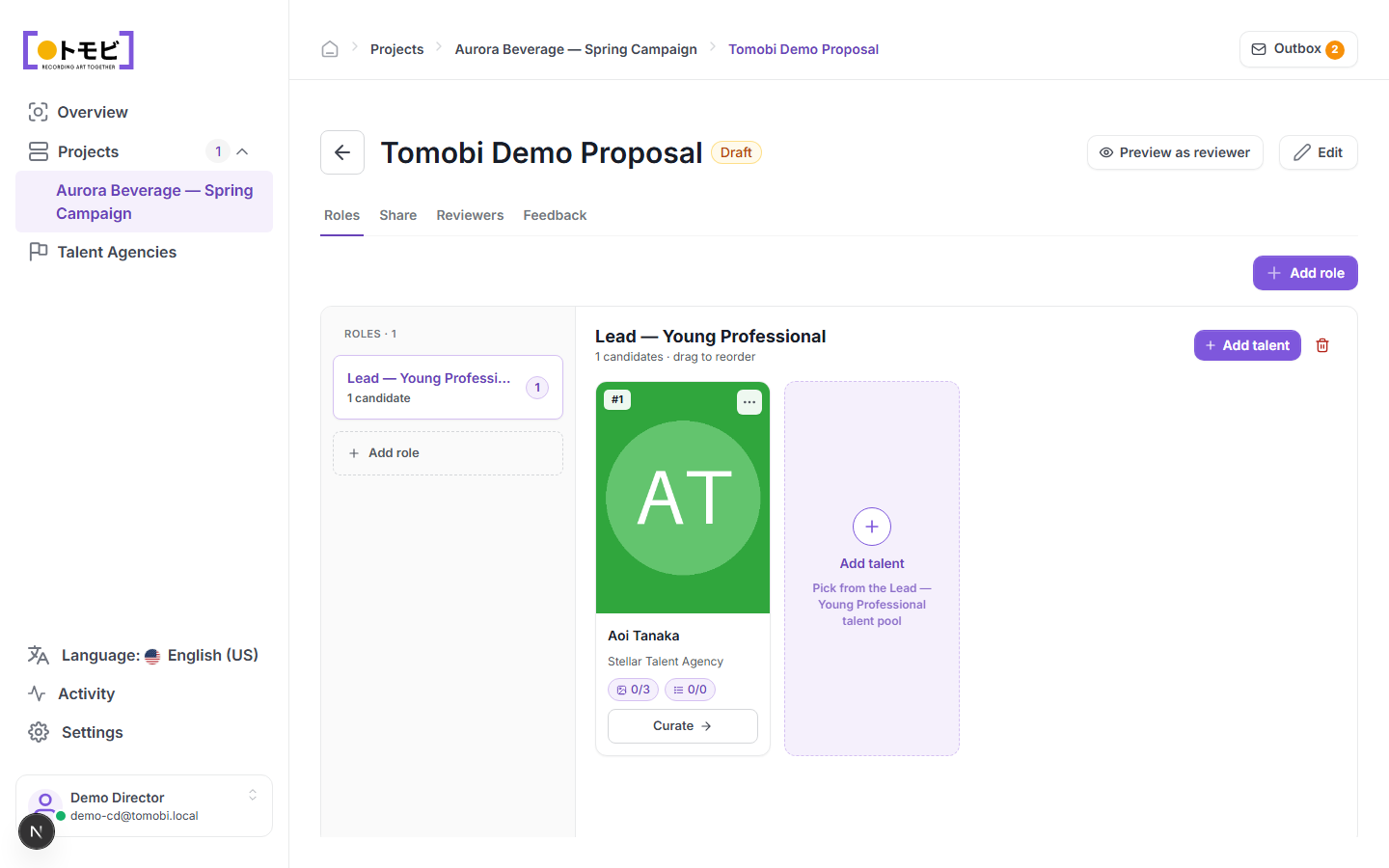
The proposal editor has two panels:
- Left panel (Roles) — lists the roles included in this proposal. Select + Add role to include another role from the project.
- Right panel (Candidates) — shows the talent cards for the selected role. Select + Add talent to pick candidates from that role's talent pool.
Drag talent cards to reorder them within a role. The #1 badge shows the candidate ranked first. Select Curate → on a talent card to review and edit which media and attributes will be visible to the reviewer for that candidate.
Preview as reviewer
Select Preview as reviewer in the top-right to see exactly what your client will see when they open the share link. The page opens in Preview mode — you are viewing as a reviewer, not as yourself. It shows the proposal overview, a progress tracker ("0 / 1 reviewed"), each role's candidate cards, and the Start review button your client uses to enter their votes. There is also an Overall comment field at the bottom where reviewers can leave a summary note.
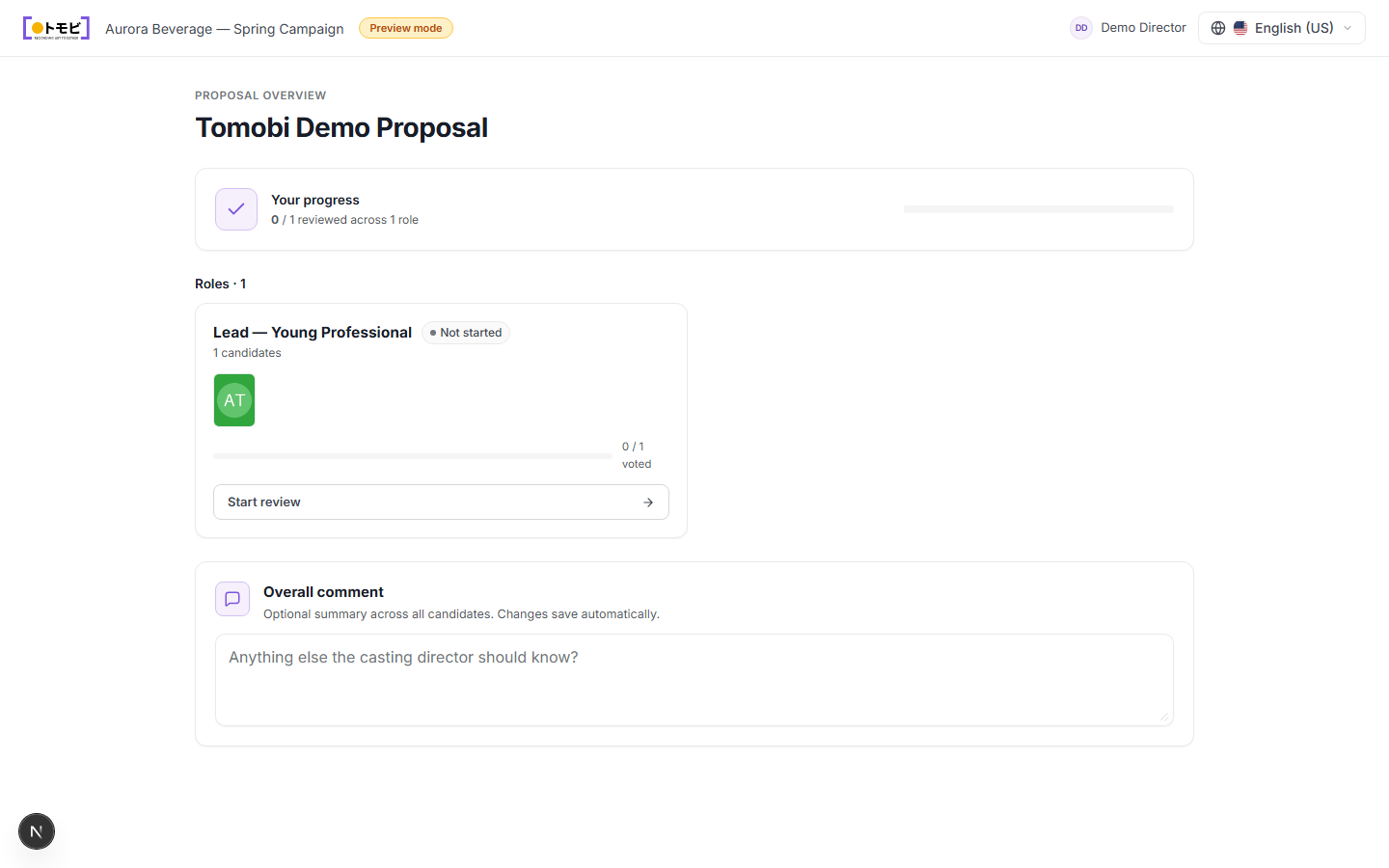
Use preview to verify the candidate selection and presentation are correct before sending the share link.
Share with your client
Click the Share tab inside the proposal to generate a shareable link and manage who has access.
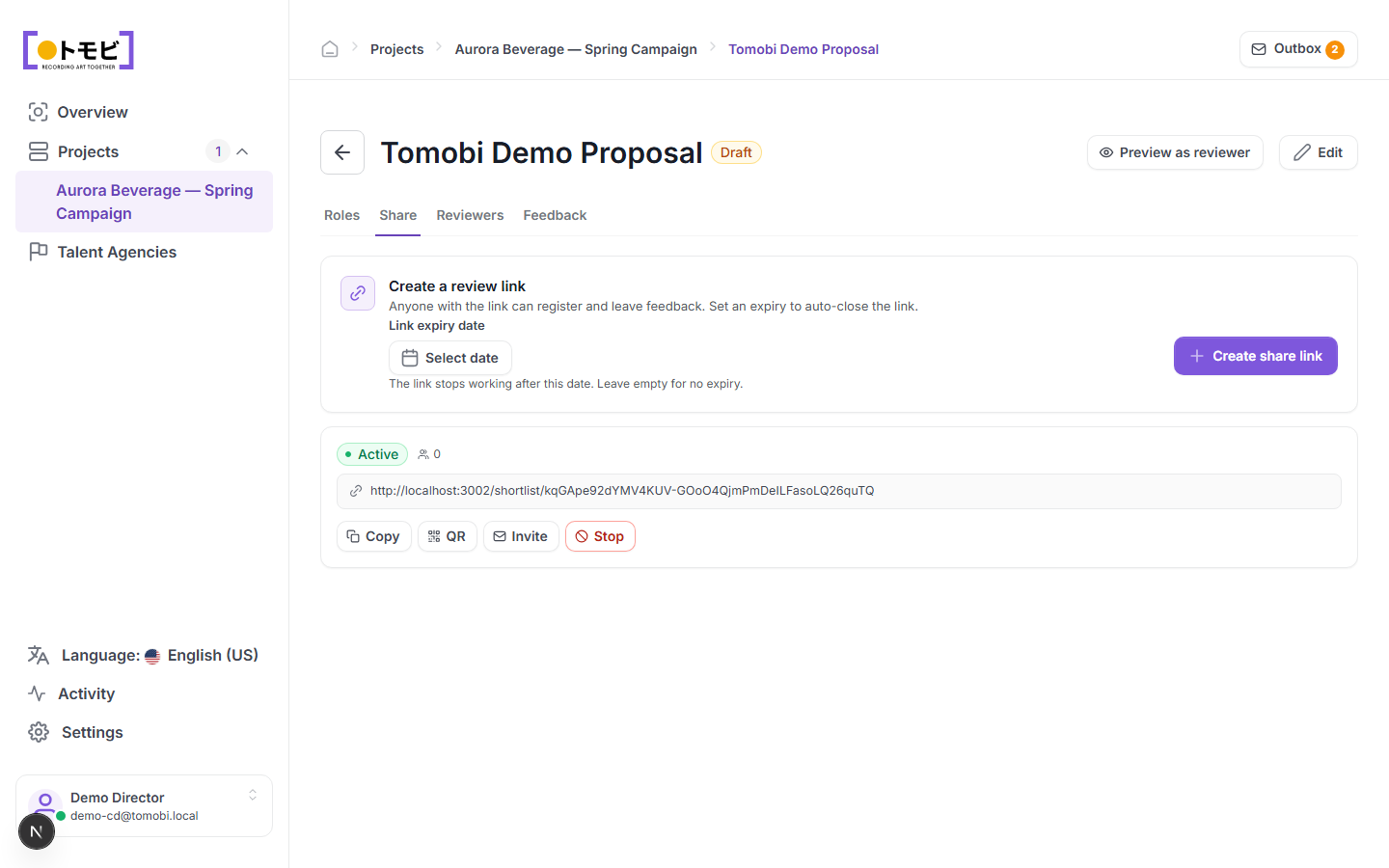
Copy the link and send it to your client by any method you prefer (email, messaging, etc.). You can also use the Reviewers tab to invite people by email, which sends them the link directly from Tomobi.
Sharing a draft proposal activates it — the status changes from Draft to Active, and the link becomes live immediately.
What your client sees
When your client opens the link they land on a confirmation page.
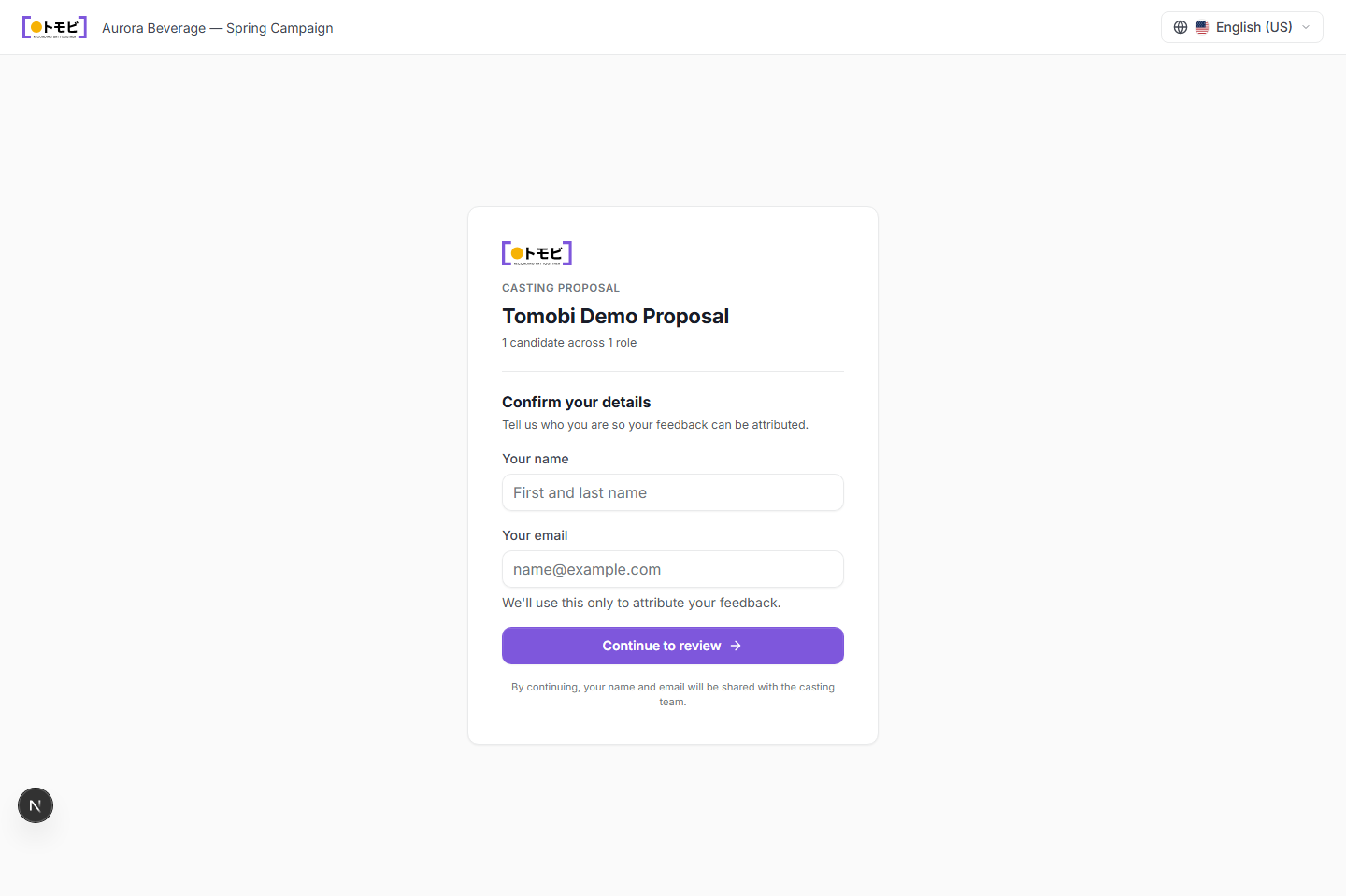
They enter their name and email so their feedback can be attributed, then select Continue to review to see the proposal. They can browse each role's candidates and leave comments or an approval decision. Their feedback appears in the Feedback tab of the proposal back in Tomobi.
Check feedback
Open the Feedback tab to see all reviewer comments and decisions. The Reviewers tab shows who has accessed the proposal and when.
Edit the proposal
Select Edit in the top-right at any time to update the title or restructure the proposal. Note that any reviewer who already has the link will see changes immediately once they reload the page.