Sending requests and the outbox
A request is a formal message from you to an agency or talent — for example, an audition invitation, a hold notification, or a booking confirmation. In Tomobi, requests are never sent directly. They are first drafted and queued in the Outbox, where you can review them before they go out.
Create a request
Requests are created from a talent's profile.
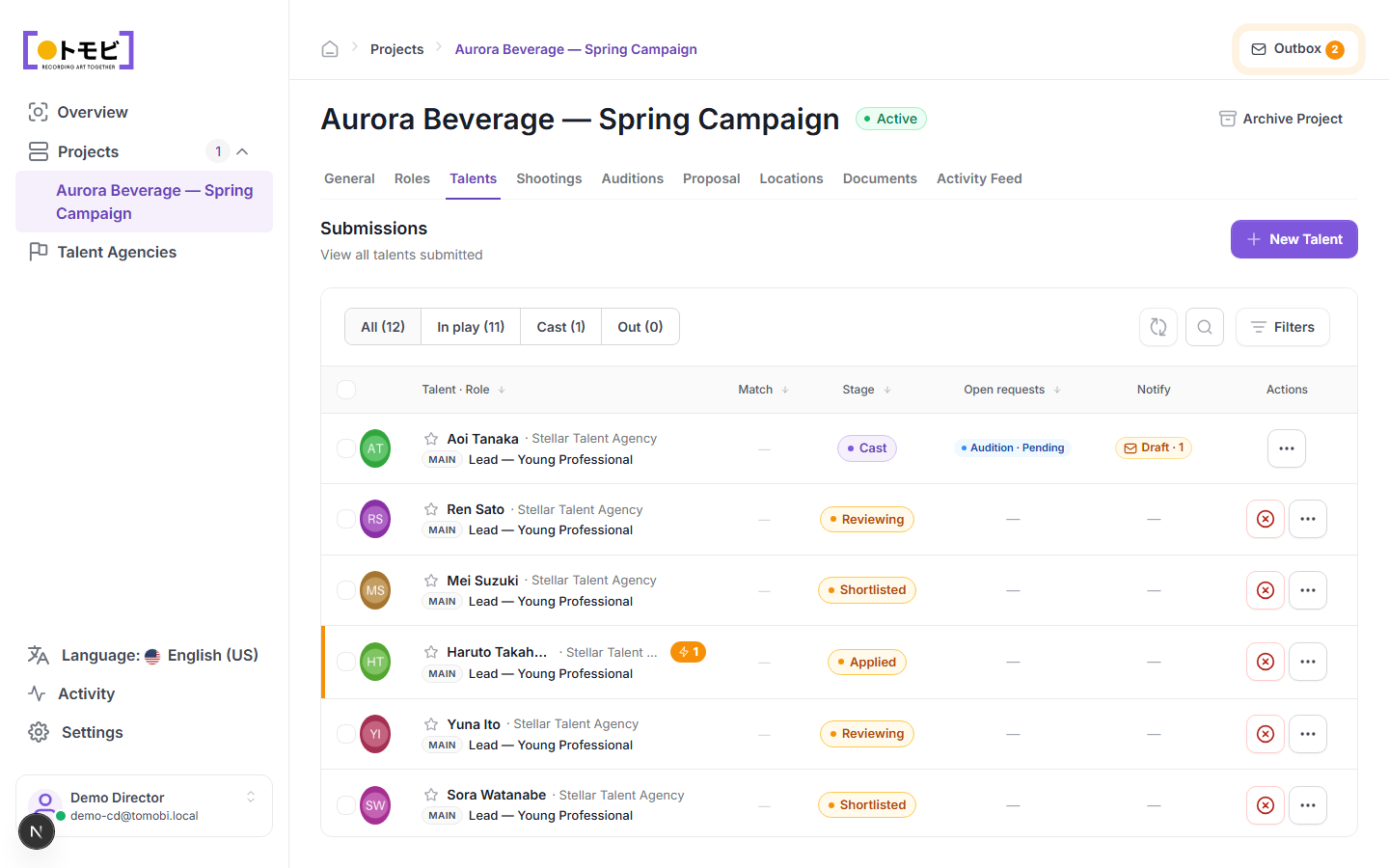
- Open the talents board and click a talent's name to open their profile.
- Select Create Request at the top of the profile.
- Choose the request type (for example, Audition, Hold, or Booking confirmation).
- Fill in the details — which slot, what date, any notes — and save.
The request is placed in the Outbox as a Draft. You will see a "Draft - 1" badge in the talent's row under the Notify column, and the Outbox counter in the top-right corner of the project increments.
Review and send from the outbox
The Outbox collects all draft messages across the whole project. Open it to review every draft before it is sent.
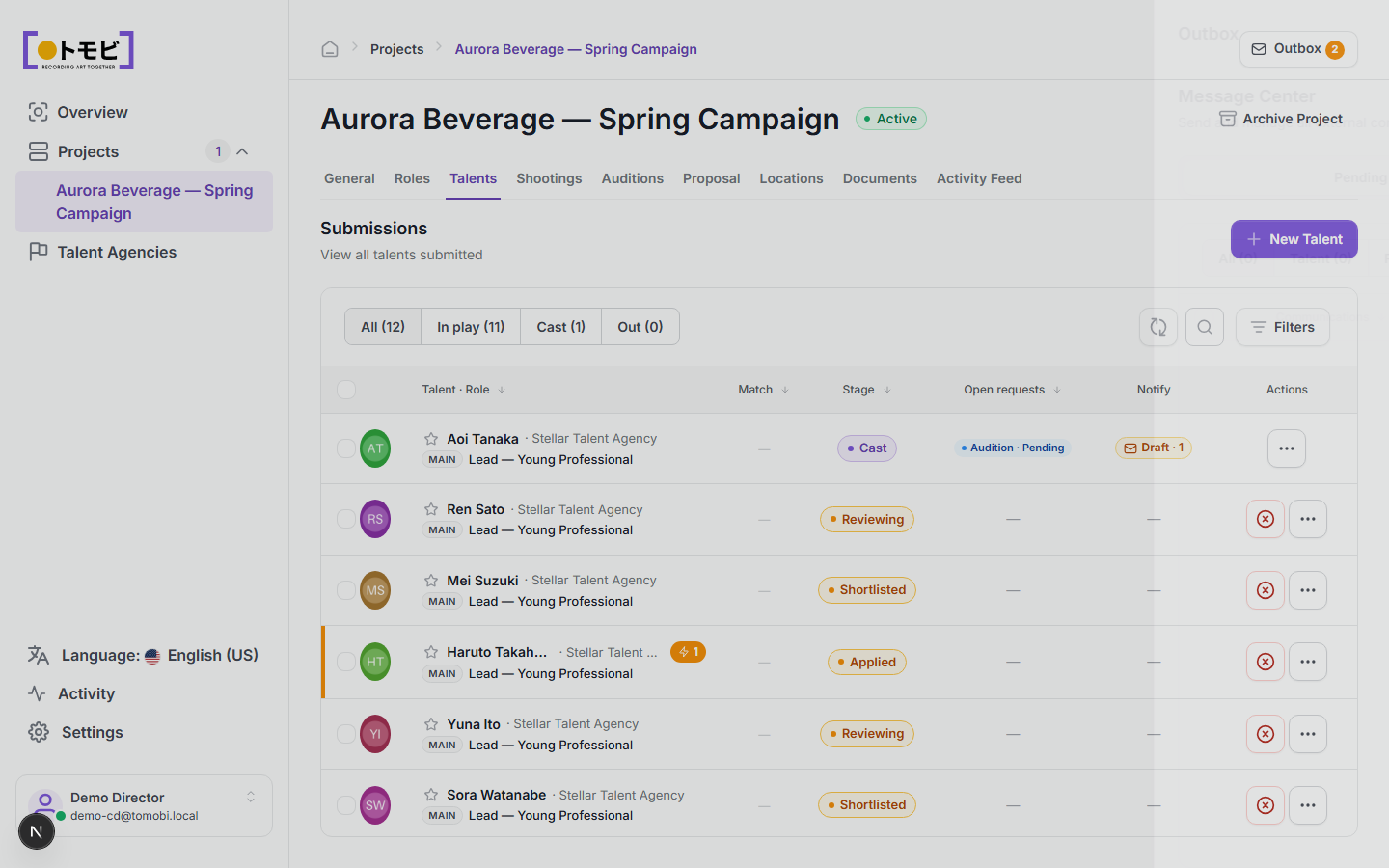
- Click the Outbox button in the top-right corner of any project page (the envelope icon with a number badge).
- The outbox panel lists all pending drafts grouped by agency or talent.
- Review each draft. You can edit or delete a draft if something needs to change.
- When you are ready, select Send to dispatch the message to the agency or talent.
Once sent, the request status changes from Draft to Pending (awaiting a response) or to the relevant confirmed state. The agency will see the request in their portal and can respond — for example, by self-booking a slot for their talent.
Track open requests
The Open requests column on the talents board shows how many active (unanswered) requests exist for each talent. In the example above, Aoi Tanaka has one pending audition request. Once the agency responds, the count decreases and the stage may update automatically.
Nudge a pending request
If a request has been sitting unanswered for too long, open the talent's profile, find the request in the Requests section, and select Nudge to send a reminder to the agency.