Auditions and fittings
An audition in Tomobi is a scheduled event with one or more time windows. Each window is divided into slots, and talents (or their agencies) book into individual slots. Fittings follow the same structure.
Create an audition
The Auditions tab lists every audition and fitting for the project. Each row shows the name, current status, type (Audition or Fitting), date range, and the number of time windows configured. Use the All / New / Scheduled / Done / Expired / Cancelled filter tabs to focus on a particular stage.
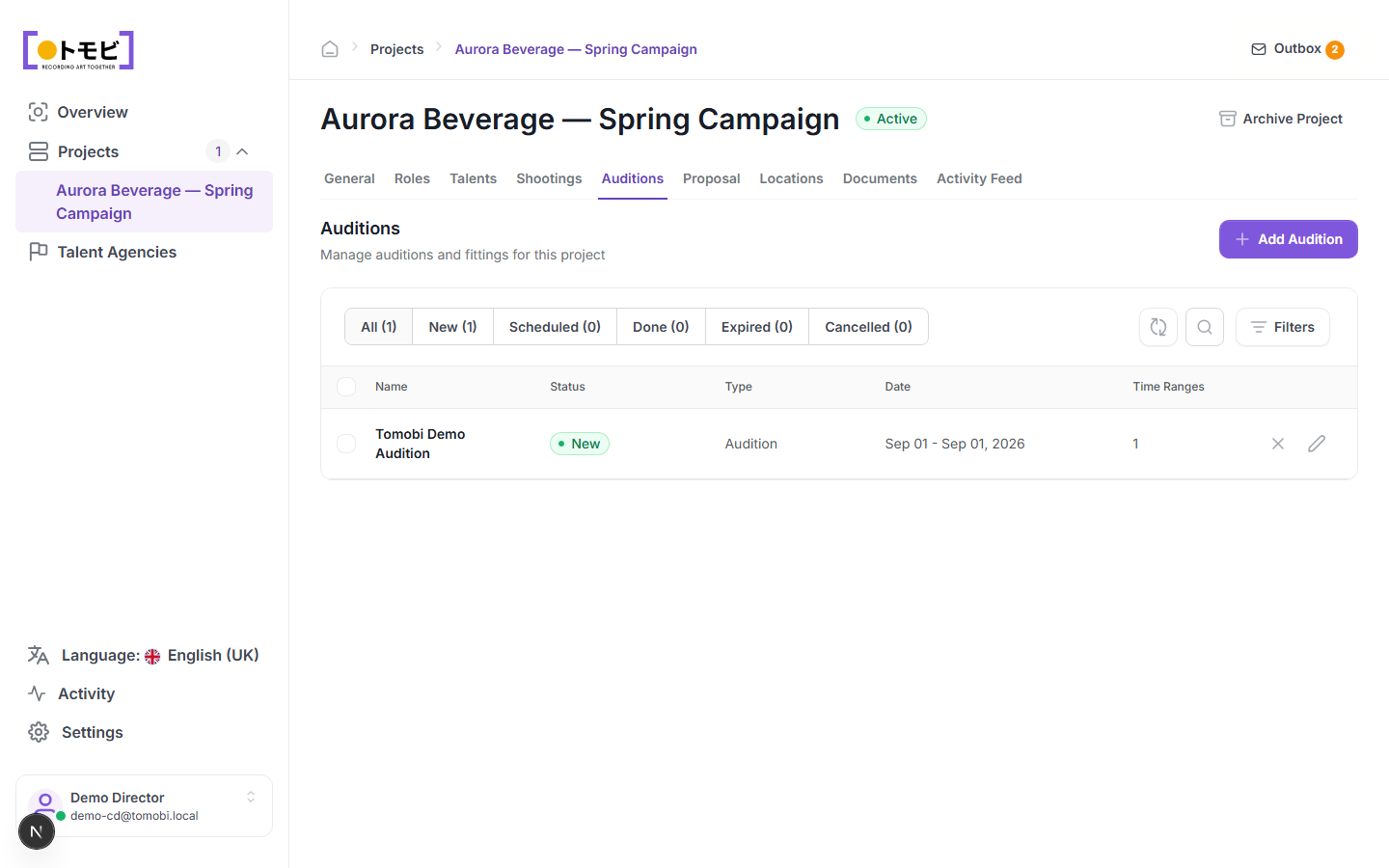
- Open your project and click the Auditions tab.
- Select + Add Audition in the top-right corner.
- Enter the audition name, location, overall date range, and time window.
- Save to create the audition. It will appear with a New status.
Add time windows (timeslots)
Each audition has one or more time windows. A window defines a block of time with a fixed number of individual slots.
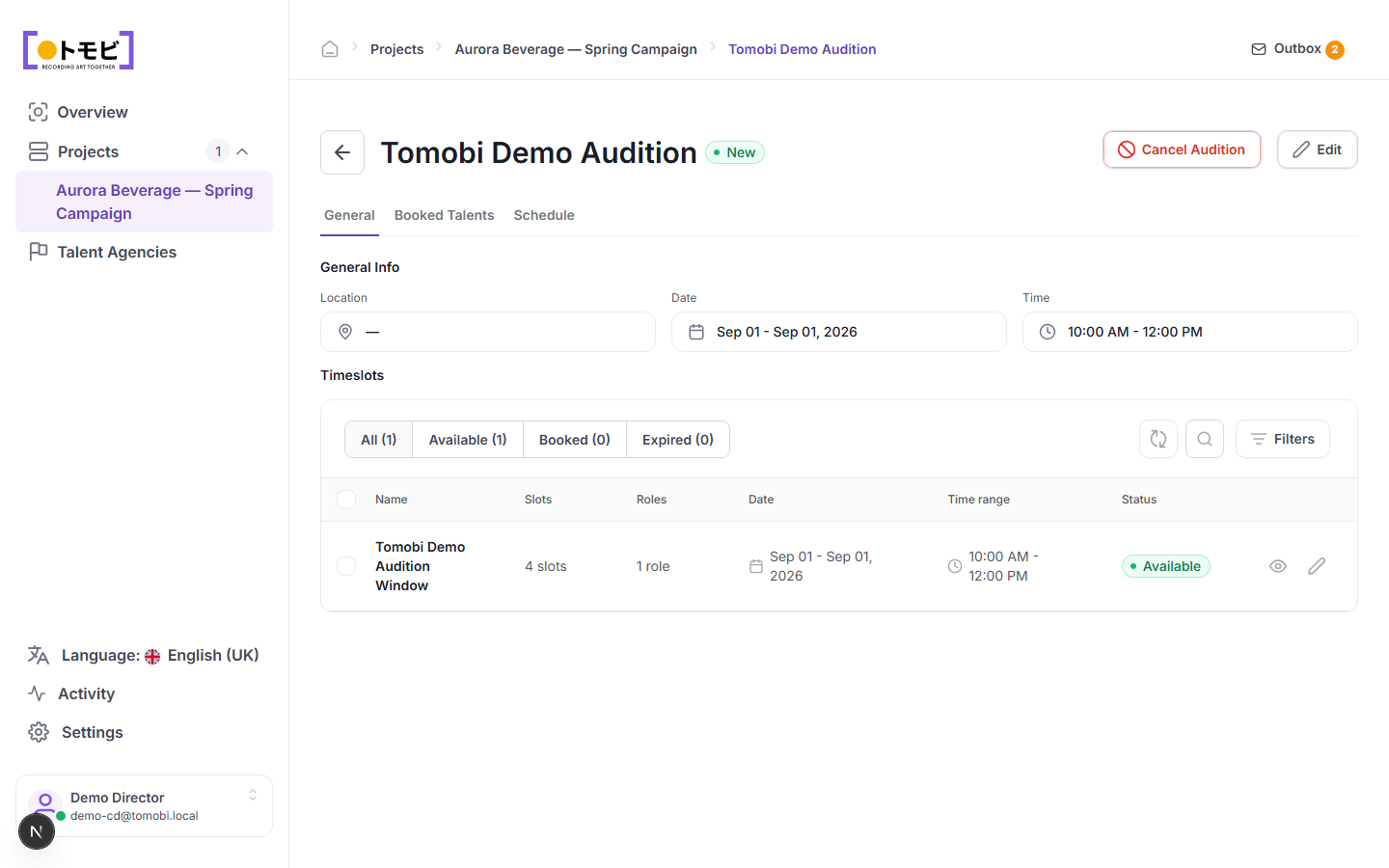
- Open the audition and go to the General tab.
- In the Timeslots section, select + Add timeslot (or edit an existing window using the pencil icon).
- Set the window name, date, time range, number of slots, and which roles this window applies to.
- Set the window to Available to allow agencies to self-book their talents.
In the example above, "Tomobi Demo Audition Window" has 4 slots, covers 1 role, and is set to Available — meaning the agency can book their talent without waiting for you to assign a slot manually.
Inside a time window
Click a window's name to open its detail view. The left panel lists all the individual Audition Slots with their time, assigned role, and booking count. The right panel shows two tables side by side:
- Booked Talents — talents confirmed into a slot, with their role and current stage.
- Available Talents — shortlisted talents who are eligible for the window but not yet booked. You can book any of them directly from here with the Book button.
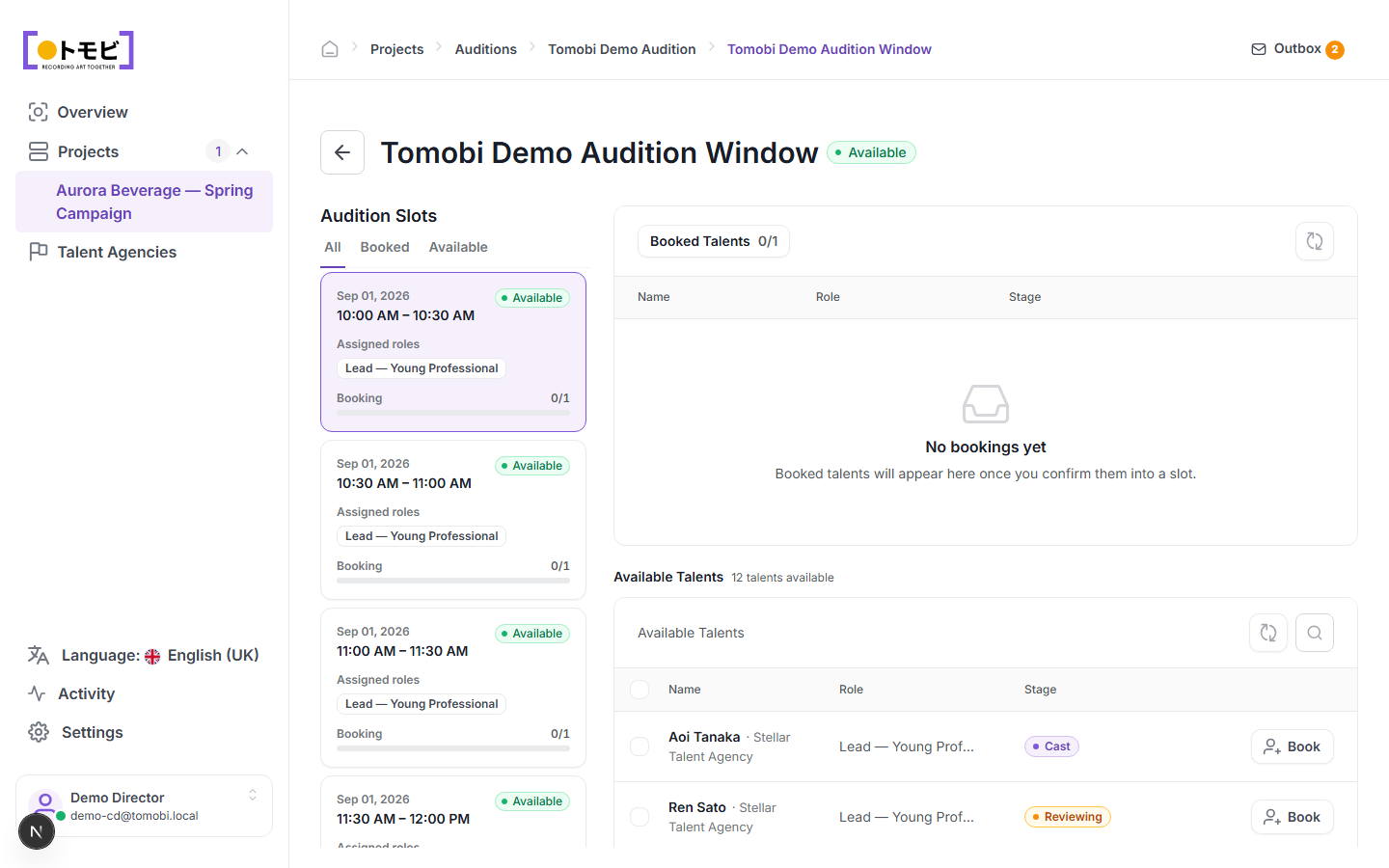
Use the All / Booked / Available tabs in the slot list to filter down to only the slots you need to act on.
Check who has booked
Click the Booked Talents tab to see every talent confirmed for a slot, along with the time they are booked into and the role they applied for.
View the full schedule
The Schedule tab shows a timeline view of all slots across all windows, so you can see how the day is filling up at a glance.
Edit or cancel an audition
- Edit — select the Edit button in the top-right to change the audition details or timeslot configuration.
- Cancel Audition — cancels the entire audition. Booked talents and their agencies will be notified.
Book a talent into a slot
You can book a talent directly from their talent profile: select Create Request, choose the audition type, pick a slot, and the request will be drafted in the outbox for you to send. Once the request is accepted, the slot count updates from Available to Booked.