Managing projects
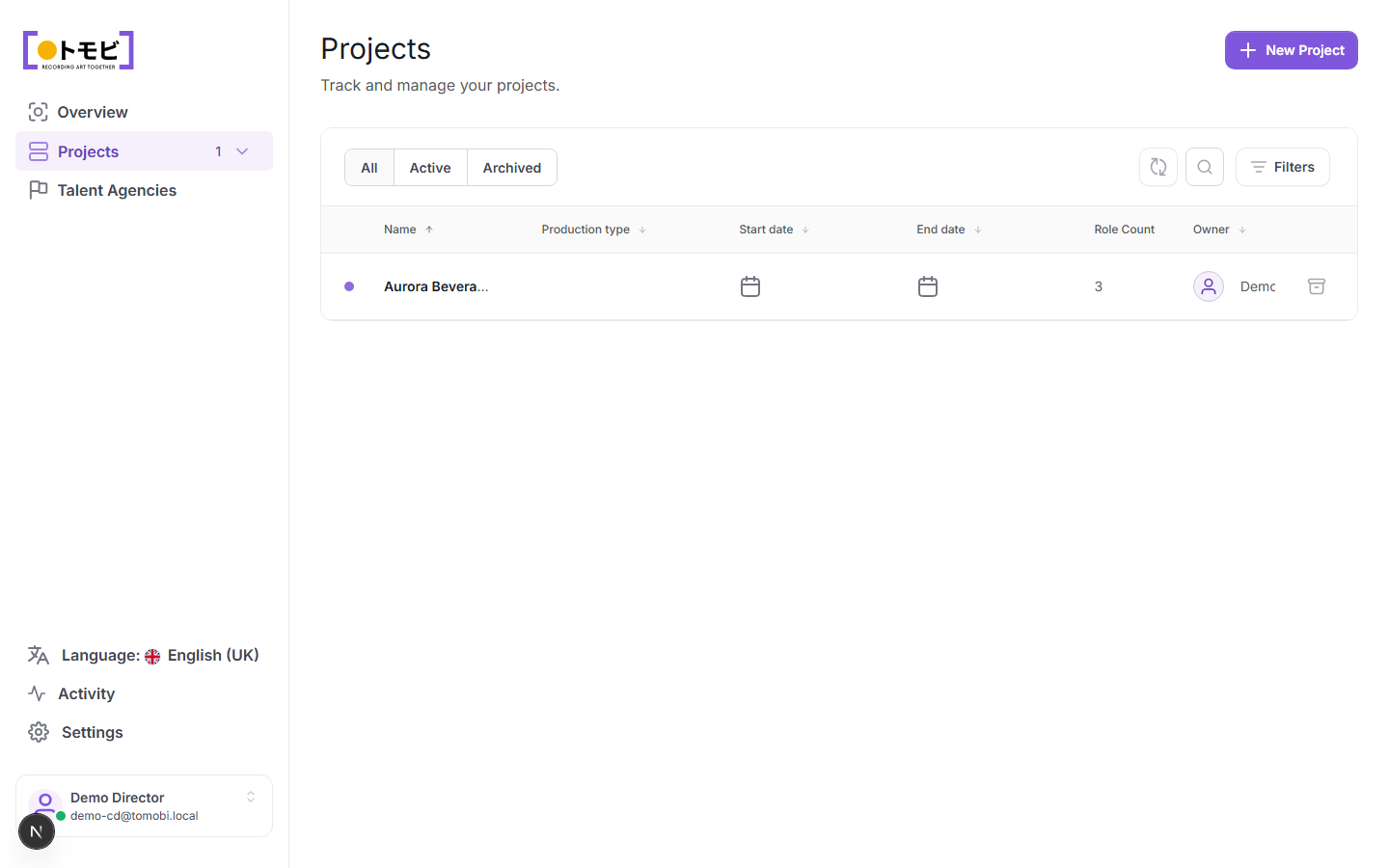
The Projects page lists every production you are managing. From here you can open an existing project or start a new one.
Find a project
Use the All / Active / Archived tabs to filter by status. The search icon and Filters button let you narrow further by production type, date range, owner, or other criteria. The table columns — Name, Production type, Start date, End date, Role Count, and Owner — are all sortable.
Create a project
Select + New Project in the top-right corner.
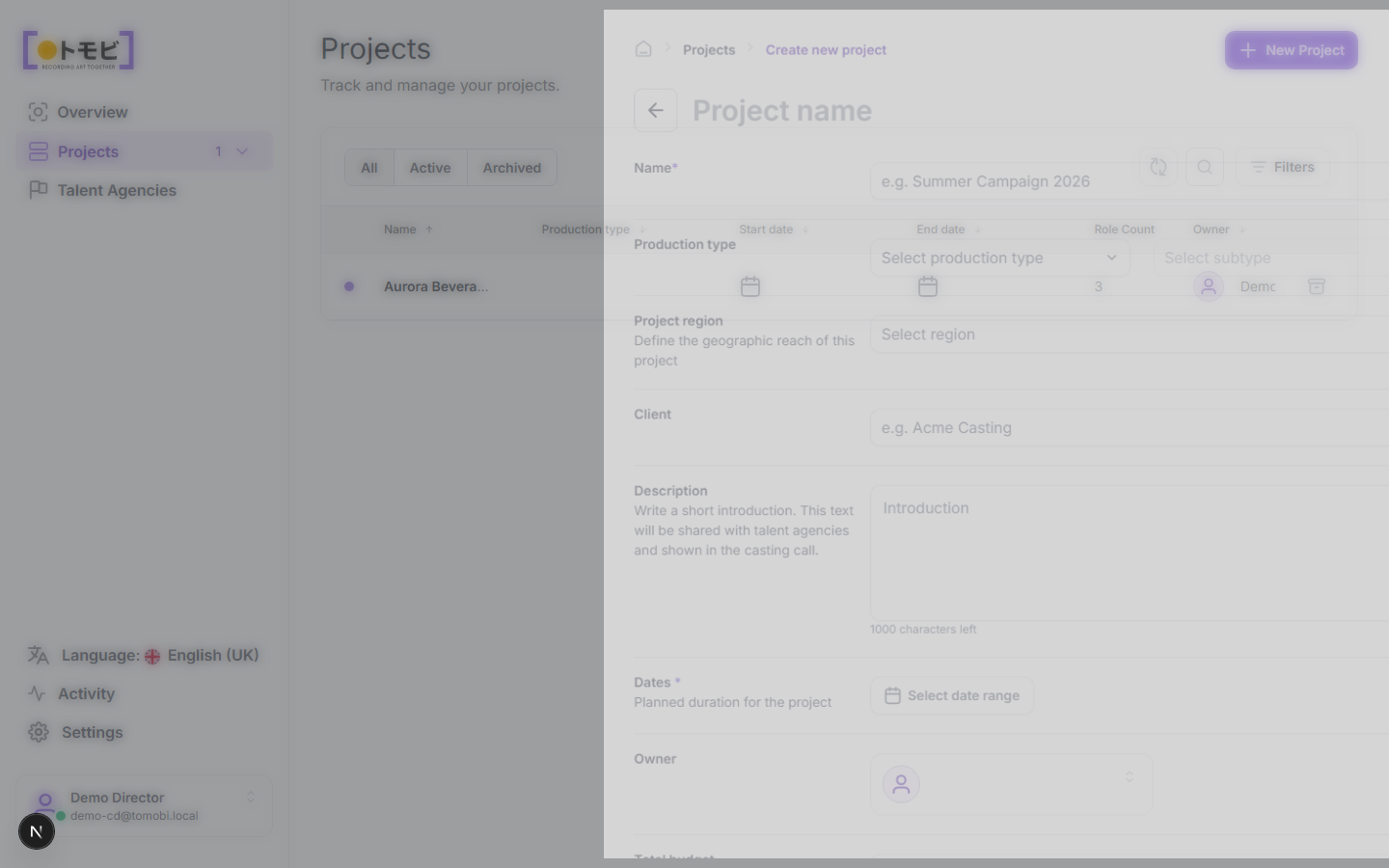
Fill in the project details in the form that opens: name, production type, dates, and any other fields relevant to your production. Save to create the project. It will appear in the list with an "Active" status and a role count of zero until you add roles.
Archive a project
Open the project and select Archive Project from the top-right action area. Archived projects are hidden from the Active tab but remain accessible under Archived. Archiving does not delete any data.
Open a project
Click any row in the projects table to open that project. Once inside, use the tabs along the top — General, Roles, Talents, Shootings, Auditions, Proposal, Locations, Documents, Activity Feed — to navigate between sections.