Shootings and call sheets
The Shootings tab is where you plan the actual production days and communicate logistics to the cast. Once a shooting is scheduled and the cast is confirmed, you send a call sheet — the official document that tells every booked talent where to be and when.
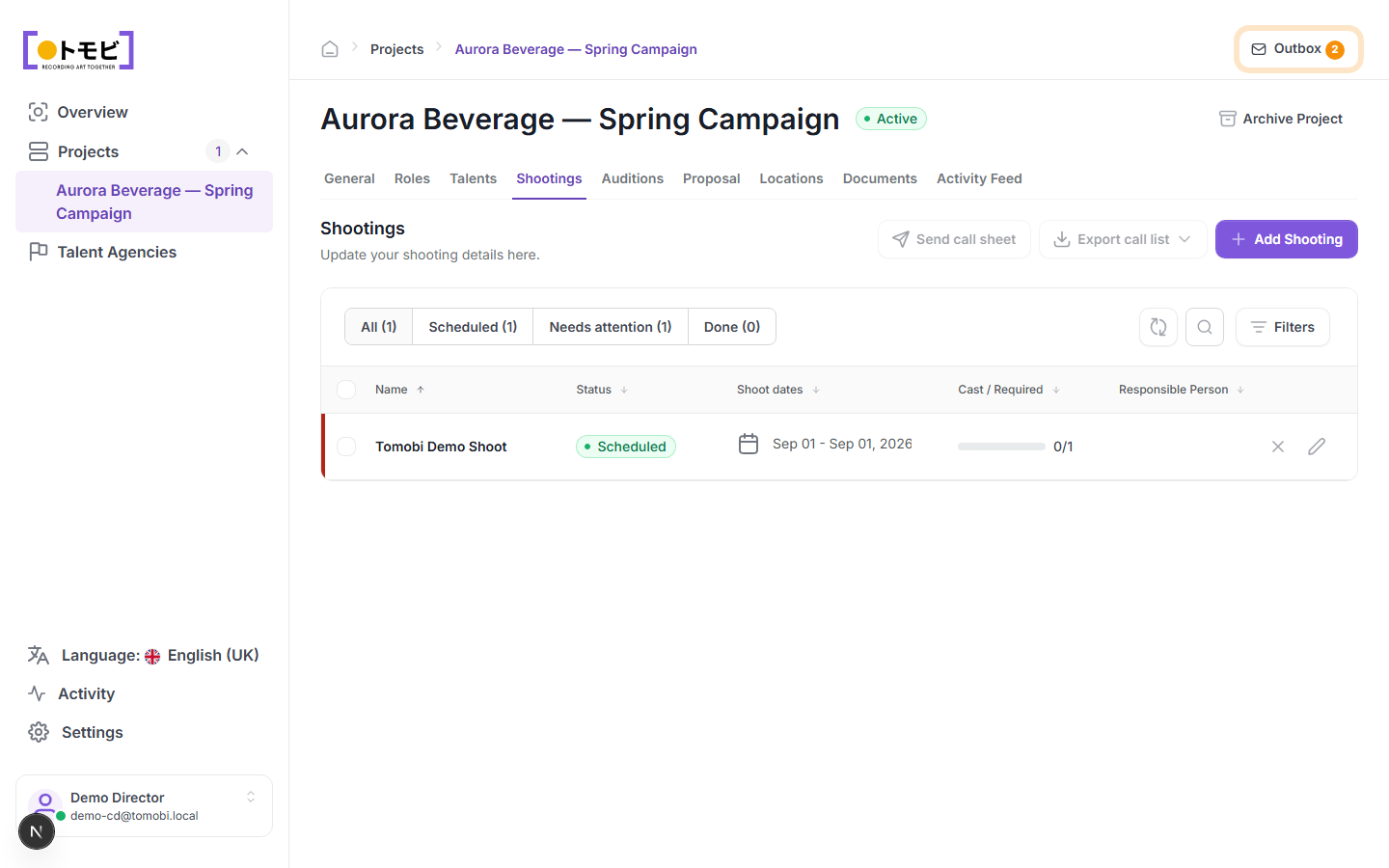
Add a shooting
- Open your project and select the Shootings tab.
- Click + Add Shooting in the top-right corner.
- Fill in the shooting name, location, dates, and which roles or talents are required.
- Save. The shooting appears in the list with a Scheduled status.
Understand shooting statuses
| Status | Meaning |
|---|---|
| Scheduled | Dates are confirmed; the cast is being assembled. |
| Needs attention | Something is not ready — for example, not all required roles have a confirmed talent, or the call sheet has not been sent. |
| Done | The shoot has taken place. |
The filter tabs — All, Scheduled, Needs attention, Done — let you focus on one group.
Track the cast
The Cast / Required column shows how many talents have been confirmed against the number needed for each shooting. In the example above, "Tomobi Demo Shoot" shows 0/1 — one talent slot is still unfilled.
Send a call sheet
Once you are ready to communicate shoot details to the cast, select Send call sheet from the toolbar above the table. The call sheet is drafted in the outbox for your review before it is sent. It goes to the agencies of all booked talents for this shooting.
If the Send call sheet button is greyed out, you may need to first confirm the cast — all required talent slots must be filled before a call sheet can be sent.
Export the call list
Select Export call list to download a spreadsheet of all booked talents, their contact details, and their call times. This is useful for on-set coordination when you need a printed or offline copy.
Edit or remove a shooting
Click the pencil icon on a shooting row to edit its details. Click the X icon to delete it. Deletion cannot be undone.