A talent profile
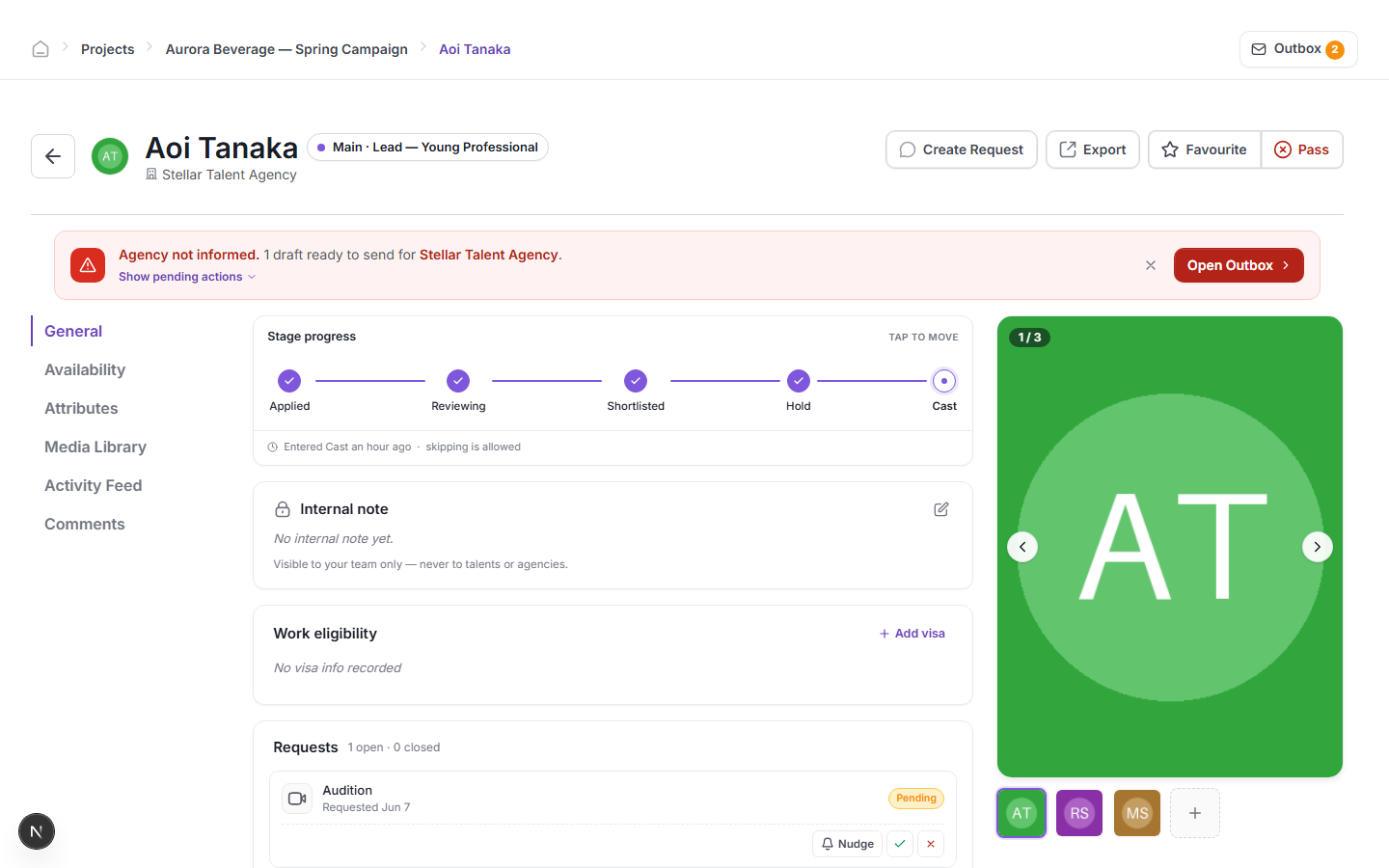
Clicking a talent's name from the talents board opens their full profile. This is where you review everything about a candidate for a specific role — their stage, attributes, availability, photos, and the requests you have sent them.
Profile sections
Use the left-side navigation to move between sections of the profile:
- General — stage progress, internal note, work eligibility (visa), and open requests.
- Availability — the talent's stated availability dates.
- Attributes — measurements, experience, languages, and other profile data.
- Media Library — all photos, videos, audio, and documents submitted by or uploaded for this talent.
- Activity Feed — a log of every action taken on this talent within the project.
- Comments — your team's internal comments (never visible to the talent or their agency).
Move through stages
The Stage progress bar at the top of the General tab shows five steps: Applied → Reviewing → Shortlisted → Hold → Cast. All filled circles mean the talent has passed through that stage. The current stage is the rightmost active step.
Select TAP TO MOVE to advance the talent. Stages can be skipped in either direction — the note below the bar tells you whether skipping is allowed for the current transition.
Leave an internal note
The Internal note card is visible to your team only — it is never shared with the talent or their agency. Click the edit icon to write or update the note.
Review photos and media
Select Media Library in the left navigation to see all submitted and uploaded files.
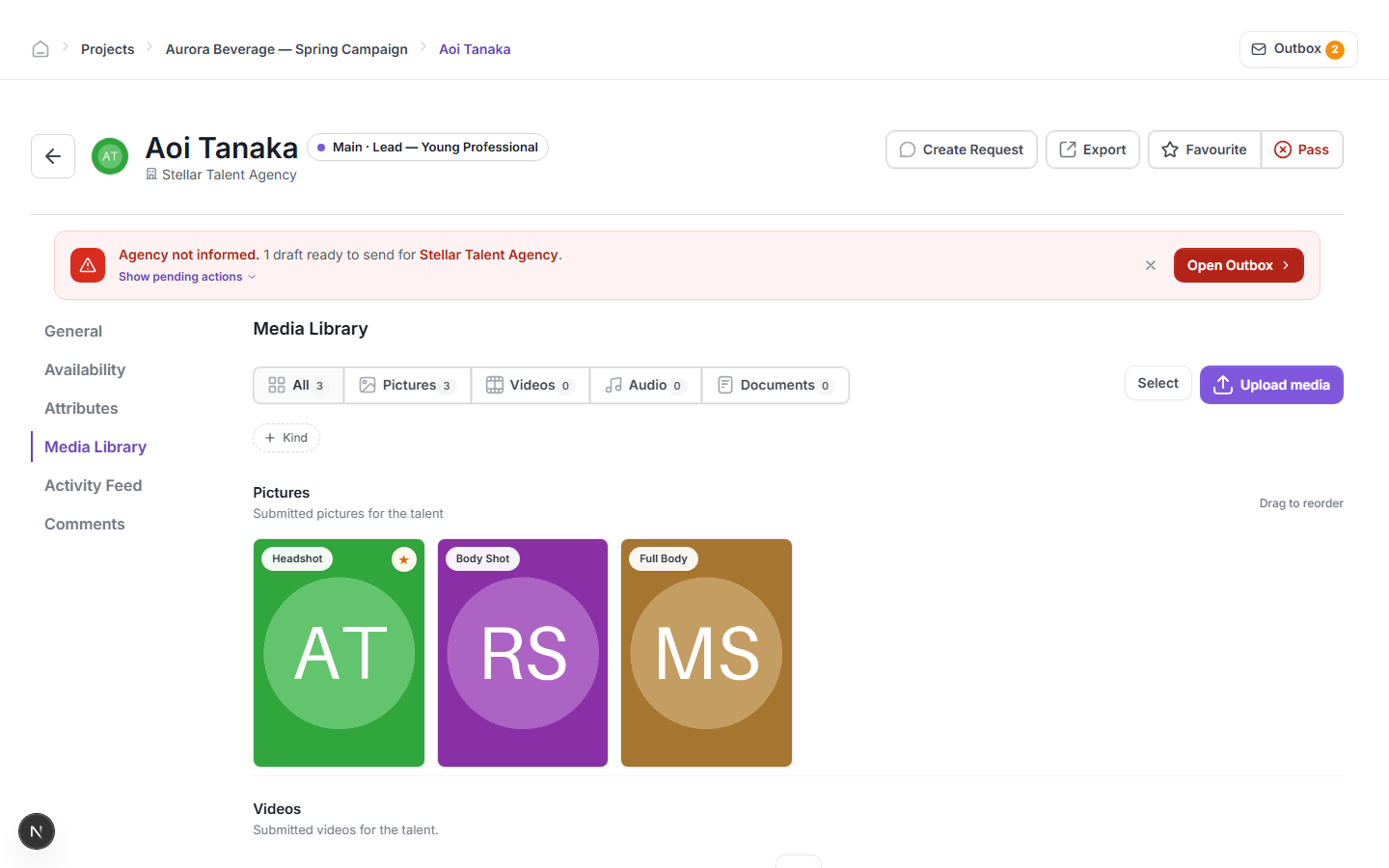
Files are grouped by type: Pictures, Videos, Audio, and Documents. The starred picture is the talent's profile photo. You can drag to reorder pictures. Use Upload media to add files directly to the talent's library, or Select to choose existing files for an action such as export.
Create a request
Use the Create Request button at the top of the profile to send a formal request to this talent or their agency — for example, an audition invitation or a hold confirmation. Requests go through the outbox before they are sent. See Sending requests and the outbox.
Other actions
- Export — download a PDF or data export of this talent's profile.
- Favourite — mark the talent as a favourite for quick reference.
- Pass — move the talent to the Out stage, indicating they are no longer being considered.
Agency notification banner
If a message is drafted but not yet sent to the talent's agency, a red banner appears at the top of the profile: "Agency not informed — N draft ready to send for [Agency name]." Select Open Outbox in the banner to review and send the draft immediately.