The talents board
The Talents tab shows every person who has submitted to your project, across all roles. It is your main workspace for reviewing applicants and moving them through the casting process.
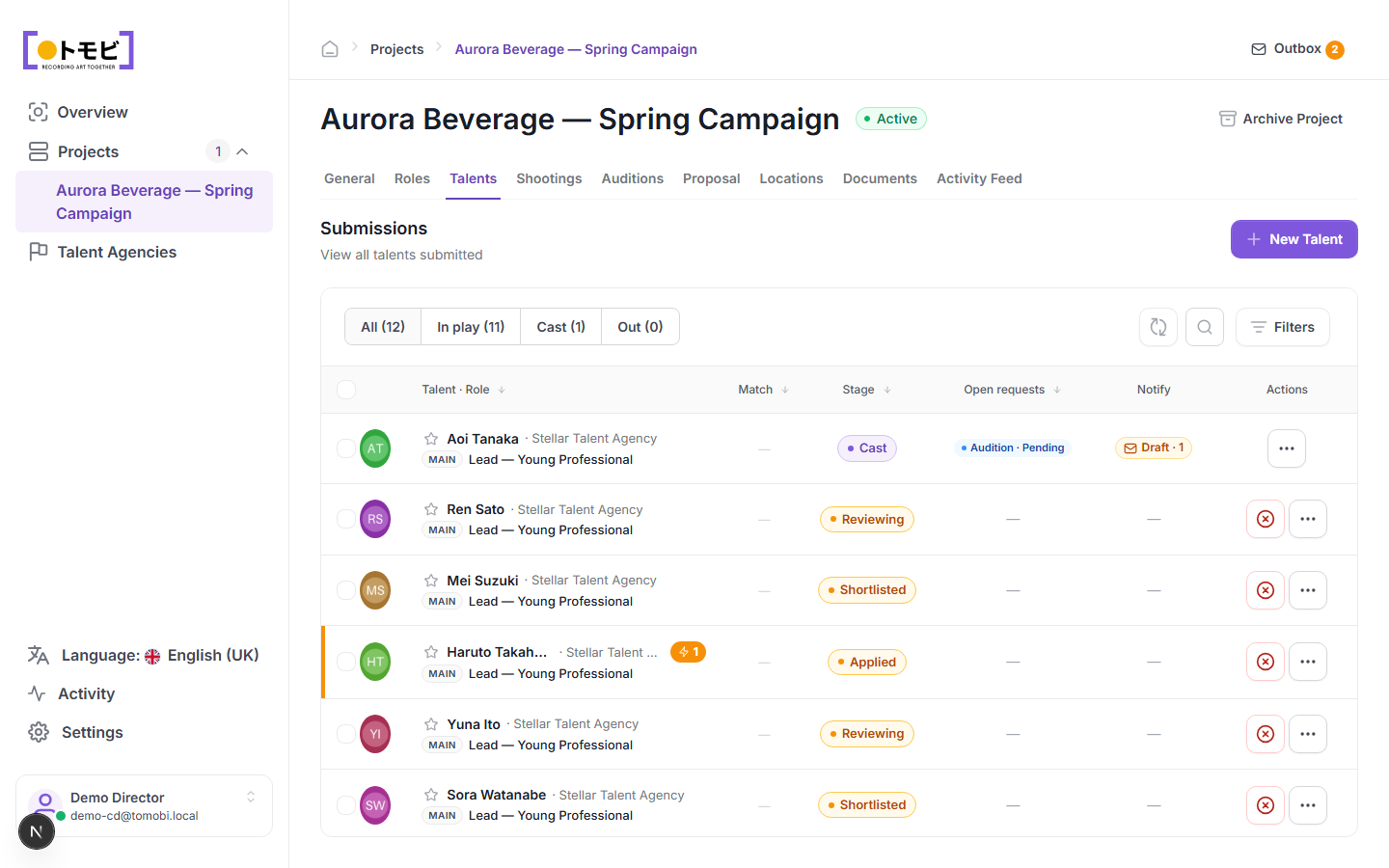
Understand the columns
| Column | What it shows |
|---|---|
| Talent - Role | The talent's name, their agency (if represented), and the role they applied to. The "MAIN" label shows the primary role. |
| Match | A match score comparing the talent's profile attributes to the role criteria. |
| Stage | Where this talent sits in the casting process for this role. |
| Open requests | Any pending requests sent to this talent or their agency (for example, an audition invitation). |
| Notify | Outbox drafts waiting to be sent to this talent's agency. |
| Actions | Quick actions: pass the talent, or open a menu for more options. |
Filter by stage
Use the tabs at the top of the table to focus on a subset of submissions:
- All — every submission regardless of stage.
- In play — talents who are still being considered (Applied, Reviewing, Shortlisted, Hold).
- Cast — talents who have been confirmed.
- Out — talents who have been passed or withdrawn.

Move a talent to a new stage
Open a talent's profile by clicking their name. On the General tab you will see a Stage progress bar with five steps: Applied → Reviewing → Shortlisted → Hold → Cast. Click TAP TO MOVE to advance the talent to the next stage, or select any earlier stage to move them back. See A talent profile for the full profile view.
Add a talent manually
Select + New Talent to create a talent record directly without going through the public application flow. This is useful when you are working with talents you already know and do not need them to fill in the application form themselves.