Submitting to a casting call
When a casting director sends you a casting-call link, you open it in any browser — no account or password needed. The page shows the project and roles on offer. Fill in your details and send your application from there.
Open the link
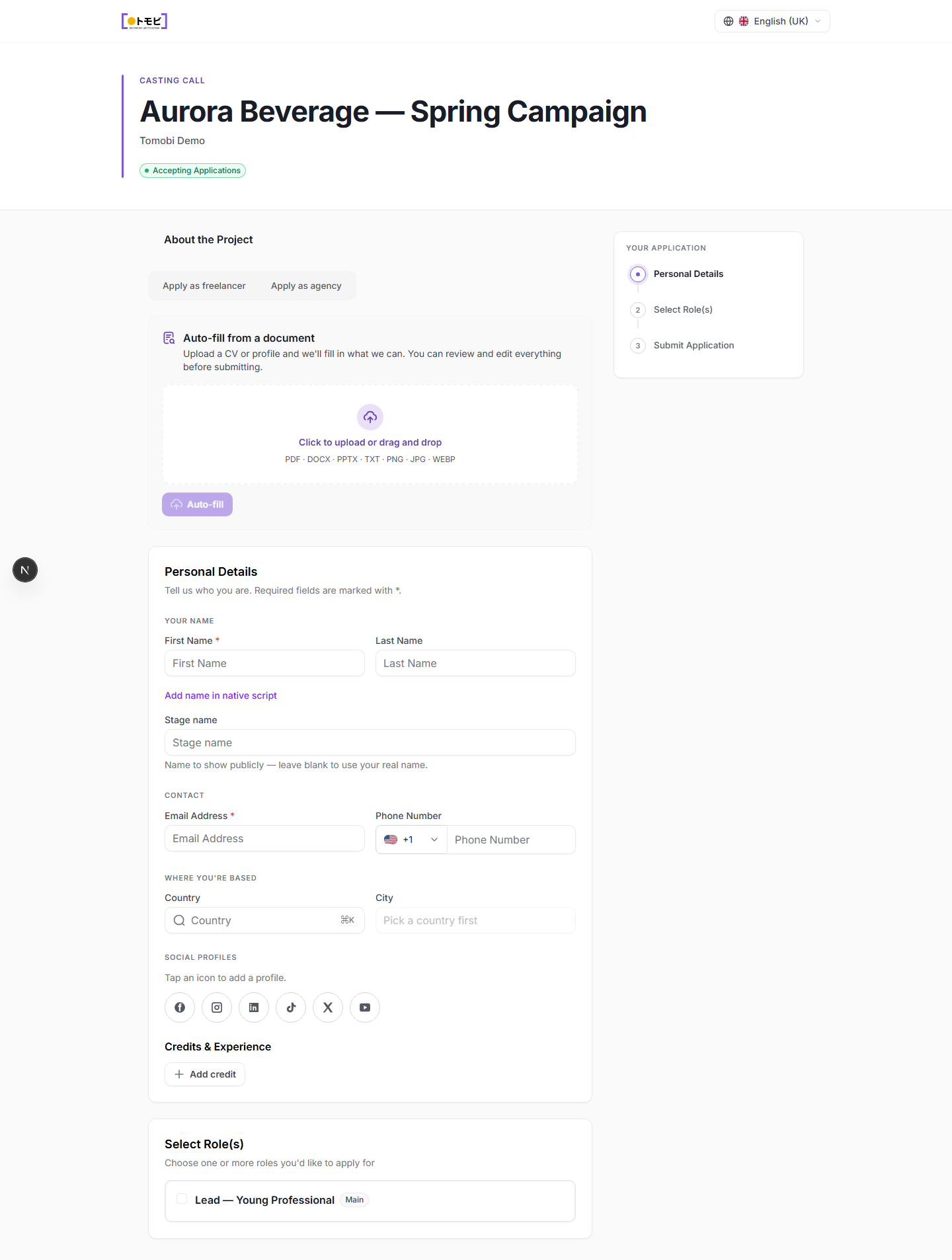
Tap or click the link you received. The page opens at the casting-call form, showing the project name, whether applications are still being accepted, and a brief description of the project.
Choose how you're applying
At the top of the form you'll see two tabs:
- Apply as freelancer — use this if you're applying directly for yourself.
- Apply as agency — use this if you're submitting on behalf of a talent you represent.
Auto-fill from a document (optional)
If you have a résumé, CV, or profile document (PDF, DOCX, PPTX, TXT, PNG, JPG, or WEBP), you can upload it first. Click Auto-fill or drag and drop your file into the upload area. Tomobi will read your document and pre-fill as many fields as it can. You can review and correct everything before you submit — nothing is sent automatically.
Fill in your personal details
The form walks you through three steps shown in the sidebar on the right: Personal Details, Select Role(s), and Submit Application.
In the Personal Details step:
- First Name (required) and Last Name — your legal or professional name. Use Add name in native script if your name is written in a non-Latin alphabet (for example, Japanese or Korean characters).
- Stage name — a public display name. Leave it blank to show your real name.
- Email Address (required) — this is where confirmation emails will be sent.
- Phone Number — optional; include the country code using the flag selector.
- Country and City — select your country first, then type your city.
- Social Profiles — tap a social-network icon (Facebook, Instagram, LinkedIn, TikTok, X, YouTube) to add a profile link.
- Credits & Experience — click Add credit to add a past project or credit.
Upload your headshot
Depending on what the casting director has requested, you may see a media-upload section for a headshot or other photos. Click the upload area or drag your file in. Accepted formats are JPG, PNG, WEBP, and others listed on the page.
Select the role(s) you want
In the Select Role(s) step, check the box next to the role or roles you're interested in. The form shows the role name and type. If there is only one role, it is selected by default.
Review and submit
Once you're happy with everything, click Submit Application. You'll see a confirmation on screen. The casting director is notified and your application is added to their shortlist for review.
:::tip Save your progress automatically The form saves a draft in your browser as you type. If you close the tab by accident, reopening the same link will offer to restore your draft. :::